Share results
White label
Put your own name, logo, colour and fonts on every report you share. Once your branding is on, your reports carry no remake mark. Every account has white label, at no charge.
Before you start
- Your agency or business name, your logo, or both.
- A logo file in PNG, JPEG or WebP, up to 200 KB. Or a link to it that starts with
https://. - The account owner's sign-in. A Viewer can't change branding.
Put your logo on reports
- Open White label in the account menu, under Account. You can also go to Settings › Account and click Open → beside Report branding.
- Type your Agency name.
- Under Logo, click Upload a logo or drop the file on the box. To use a link instead, click Use a link instead and paste it.
- Fill in the rest you want: Website, Accent colour (pick it, or type its code such as
#4F46E5) and Contact line. - Pick your Report fonts.
- Click Save branding.
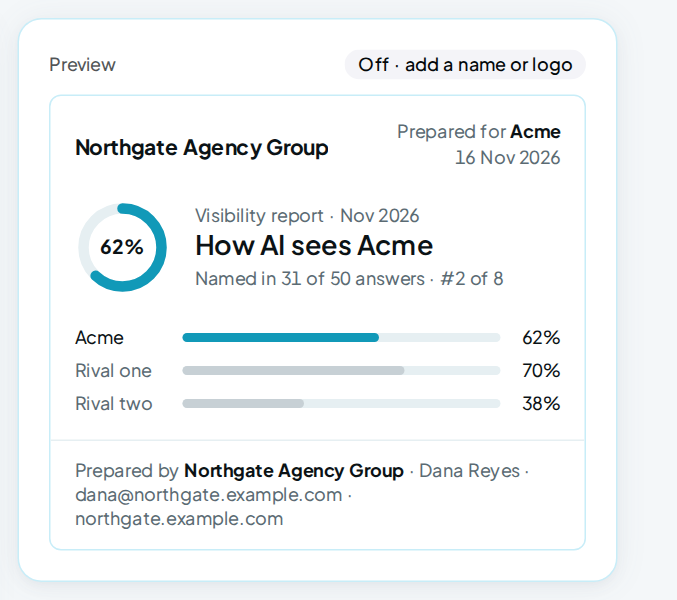
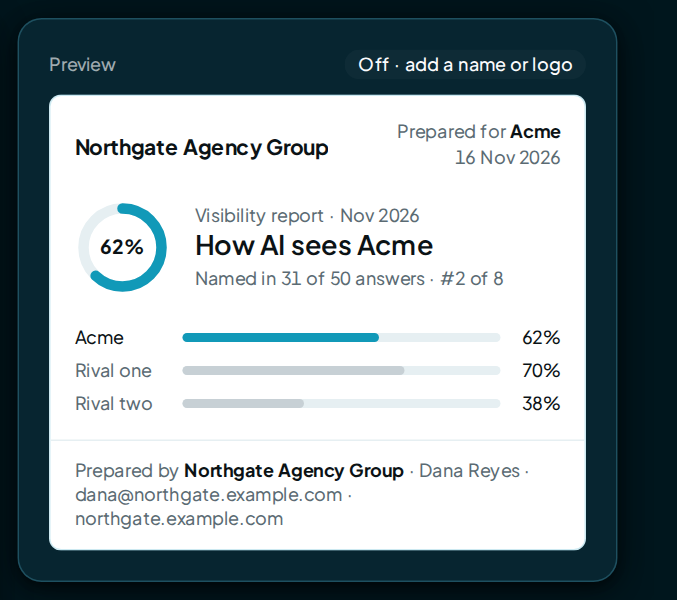
The preview beside the form shows your report's cover as you type: your logo or name, fonts, accent colour and "Prepared by" line. The label above the preview says White label on once your branding is saved. A logo around 400 × 100 pixels works best.
A very light colour is drawn a little deeper on reports so text stays easy to read. The page shows the shade your reports will use under the colour.
| Setting | Where it shows |
|---|---|
| Agency name | The report's cover and footer, the tab title, and "Prepared by" lines |
| Logo | The report's cover and the PDF's pages |
| Website | Your footer, as a link back to you |
| Accent colour | The report's accents |
| Contact line | The footer, so readers know who to ask |
| Report fonts | The report's type: the default, Modern grotesk or Editorial serif |
What changes on your reports
White label turns on as soon as you save an agency name or a logo. From then on it applies to every report, old and new:
- The report link: the page, the browser tab's title and icon, and the preview a chat app shows for the link.
- The PDF: the cover, the header on every page and the file name.
- The embed on your website, and the Pitch page.
No remake name, logo or link appears on any of them. The report's address stays on app.tryremake.com.
The numbers and findings stay the same.
Change it from a report
The Generate report dialog on Overview has a White-label for agencies section with the same fields. Saving there changes the same settings. See Share a report.
Turn it off
Clear the Agency name, click Remove beside the logo, and click Save branding. Your reports go back to remake's branding.
Check it worked
- Open a brand's Overview and click Generate report.
- Click Open report.
- Check the cover shows your name or logo, and the browser tab shows your name.
Click Download PDF to check the PDF's cover too.
FAQ
Does white label cost anything?
No. It's on every account, free.
Does my client see my wallet or prices?
No. The report shows results and fixes. If a reader runs fixes from the report, the charge goes to your wallet, and the report doesn't show a price.
I set a colour but my report looks the same. Why?
Picking the house teal counts as no colour, so the report keeps its own. Choose another colour and save.