Start here
Getting around the app
Every screen sits in the same frame: a top bar, a sidebar on the left, and the page. The sidebar changes with where you are: your account as a whole, or one brand.
A brand is one business you track. An agency account says brand; other accounts say website.
The sidebar
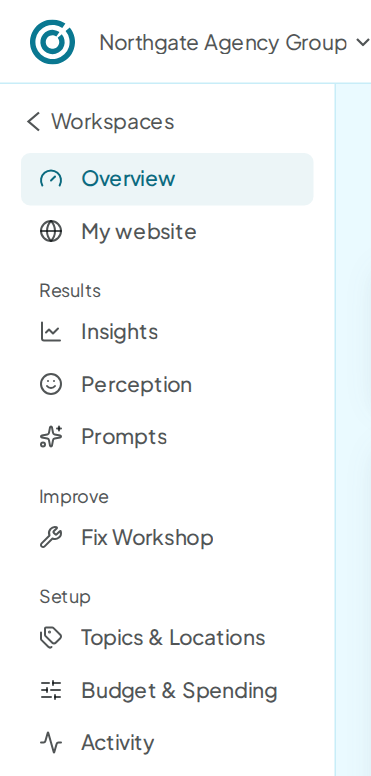
The sidebar shows one of two menus. Account pages show the account menu. Open a brand and you get that brand's menu, with Workspaces at the top to take you back.
The account menu:
| Group | Items |
|---|---|
| Workspaces | |
| Agency | Prospecting, Pipeline (agency accounts only) |
| Account | Wallet, Team, Integrations, Your AI, White label, Settings, Activity |
A brand's menu:
| Group | Items |
|---|---|
| Overview, My website | |
| Results | Insights, Perception, Prompts |
| Improve | Improve |
| Setup | Topics & Locations, Budget & Spending, Activity |
Improve shows your Visibility run by run and what to improve, with one click to your AI. See Improve.
Below a brand's menu sits the Start here card. The foot holds Brand settings for the brand you have open. Before your first brand, the sidebar holds a single link to set one up.
Your name sits at the bottom left. Its menu opens Workspaces, Settings, Wallet, Integrations and Docs & help, and has Log out. The wallet row shows your balance.
At 1200 px and wider, Collapse menu at the foot folds the sidebar to icons. Narrower screens fold it on their own, and Pin menu open keeps it wide.
The top bar
From left to right:
| Item | What it does |
|---|---|
| Logo | Takes you home to Workspaces. A website owner with one workspace and one website lands on that website's Overview instead. |
| Workspace and brand | The brand you have open. Click it to switch to another brand in the same workspace. You stay on the same screen. |
| Wallet chip | Shows only when it matters. Before your first top-up it reads Add credit to start runs. When credit runs low it reads Low credit with your balance. When the wallet is empty it turns red and reads Out of credit · runs paused. It opens Wallet. |
| Bell | Your latest 8 events: finished runs, fix re-checks, moves in your numbers and your rivals, and a low-credit note. It also tells you when the open brand's site changed since its fix suggestions were written. See all activity opens Activity. |
| Help menu (?) | Ask the help bot, Docs & help and Lessons: the Quick start and one lesson per page. |
| Search | Opens the command palette. |
Search with the command palette
Press ⌘K on a Mac or Ctrl K elsewhere, or click the search icon. With nothing typed, the palette shows 3 quick actions: Add prompt, Add brand and Upload prompts. Every page follows below them.
Type to filter by page name. The palette finds pages, actions and brands, not your prompts or results.
It also finds Bulk run, which no menu lists, and Import & export in Settings. On an agency account, its Clients group lists one row per brand.
Start here and the tour
These are 2 different lists.
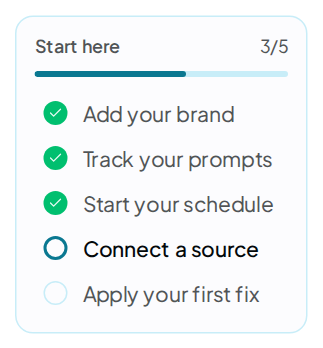
The Start here card counts 5 steps for the brand you have open. Each step is a link, and it ticks itself when the app sees the step done:
- Add your brand: the brand exists.
- Track your prompts: the brand has at least 1 prompt.
- Start your schedule: the schedule is on.
- Connect a source: Search Console or Google Analytics is connected.
- Apply your first fix: a To-do item was marked done.
With all 5 ticked, you can dismiss the card. It hides while the sidebar is folded to icons.
The Quick start opens once by itself, on your Overview after your first results. Pick I'm new to this or I know the basics, and it walks you across Overview, Prompts, Budget & Spending and Improve.
Each page also has a short lesson. It opens the first time you visit that page, once. Prospecting's lesson is for agency accounts.
On agency accounts, setting up a pitch shows a short card for each part of the setup, the first time you reach it. Replay them under Lessons as Lesson 9 · Setting up a pitch.
Press × or Escape to close one. To replay any of them, open the Help menu and pick it under Lessons. A tick marks each lesson you've finished, and the Lessons heading shows how many you've done.
Banners
When the app turns down an action, a banner above the page says why and what to do next. Close it with the ×.
- Out of credit: your history and reports stay open. Top up credit opens the wallet.
- Too many runs: up to 3 runs go at once per account. Let one finish, then start the next.
- An address the app can't read: check the website address and try again.
The help bot
Open the Help menu (the ? in the top bar) and choose Ask the help bot. A chat panel opens at the bottom right of the page. It answers questions about runs, credit, billing and your account, and asking costs nothing.
Light and dark
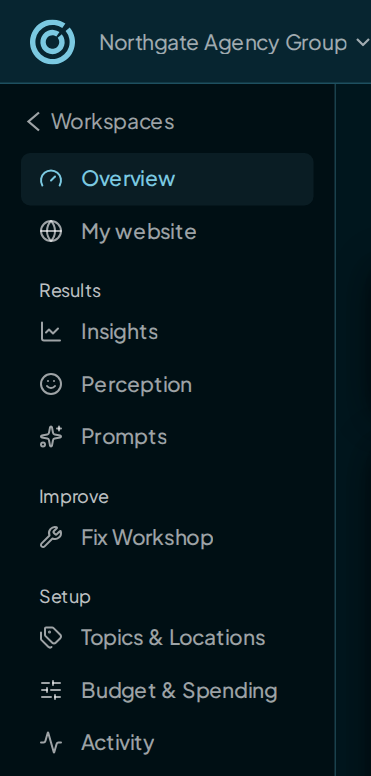
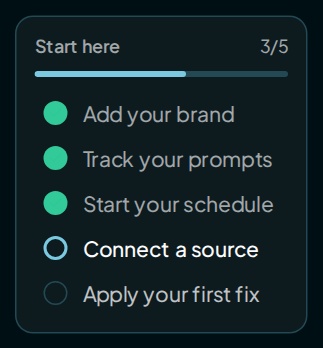
Pick Light, Dark or System under Appearance in your name's menu. Settings › Appearance has the same choice. System follows your computer's setting, and the choice is saved in this browser.
Desktop only
The app needs a window at least 900 px wide. On a phone or a narrow tablet, a card asks you to open the app on a computer, with a Copy link button. Turn a wide tablet sideways and the app comes back.
Activity
Activity is a timeline for the brand you have open, newest first. Open it from either menu, or from See all activity in the bell. It lists:
- runs that finished, with how many answers named you
- runs that failed, with the reason
- fix re-checks, with how many fixes were live
- the day the schedule started
It shows the latest 18 events and has no filters. To see another brand's timeline, switch brands in the top bar.
Old links
Saved links to older page addresses still work. A page that moved opens at its new place.
FAQ
Can I use the app on my phone?
No. Below 900 px wide, the app shows a card instead of its screens. Use a computer, or a tablet turned sideways if that makes it 900 px wide or more.
Where is the help button?
In the top bar. Open the Help menu (the ?) and choose Ask the help bot. There is no floating chat button.
Why does Activity show only one brand?
Activity follows the brand you have open. Click the brand name in the top bar to switch.