Read your results
Overview
Overview puts one brand's latest run on a single screen. Each card links to the page that holds its full detail.
Open it
Inside a brand, Overview is the first item in the sidebar. To see another brand, click the brand name in the top bar and pick one.
The header
The line under the title names the brand, the month the page's runs start and how many runs it reads. On the right:
- Generate report opens a dialog where you pick a run, then share or download it. See Share a report.
- The run line gives the day of the last run and of the next scheduled one. It also says when the newest run failed, or when the next run waits for credit.
- Continue setup shows while the brand's schedule has never started.
The five tiles
The tiles read the latest run, whose date sits above them.
| Tile | What it shows |
|---|---|
| Visibility | The share of answers that named you, with the count, such as 9 of 21 answers |
| Share of voice | Your share of every brand mention in the answers, against your rivals |
| Tone | Of the answers naming you, the share that speak about you positively |
| Cited as a source | The share of answers that link to a page on your own site |
| Position | Your average place among the brands an answer names; lower is better |
Each tile also shows its change since the run before, and a small line across recent runs. Click a tile to open Insights on that measure. The glossary gives each formula.
How changes are counted
Overview has no time window and no filters. The tiles and cards read the latest run, and every change compares it with the run before. Top prompts is the one exception: its Visibility column adds up your last 12 runs.
The charts show up to your last 12 runs.
To choose a period, compare with last month, or narrow to one topic or AI model, open Insights.
The cards and where they lead
| Card | What it shows | Its footer link opens |
|---|---|---|
| Key insights | Three columns: Summary, What's working and Needs improvement | Insights |
| Visibility over time | One line per brand, one point per run; with one run, bars | Insights, on Visibility |
| Share of voice | A ring of the latest run's mentions, with each brand's share and count | Insights, on Share of voice |
| Top rivals | The brands named beside you: Visibility, Avg. position and Change | The rivals board on Insights |
| Visibility by AI model | One bar per AI model, strongest first, with its change | Insights |
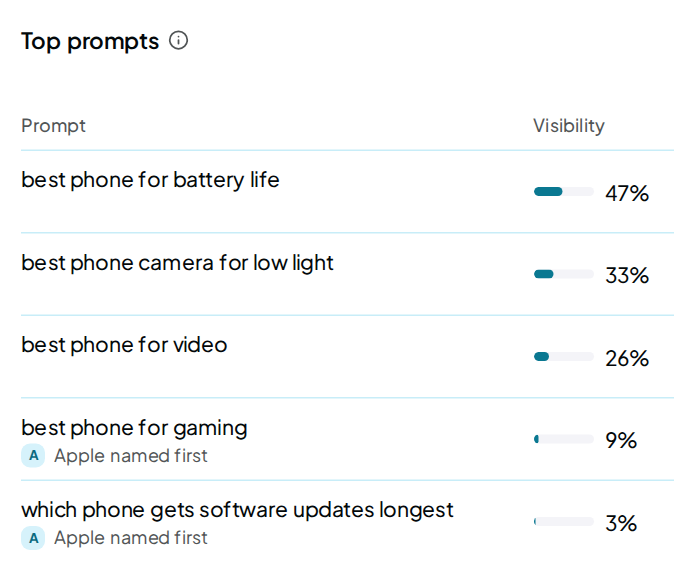
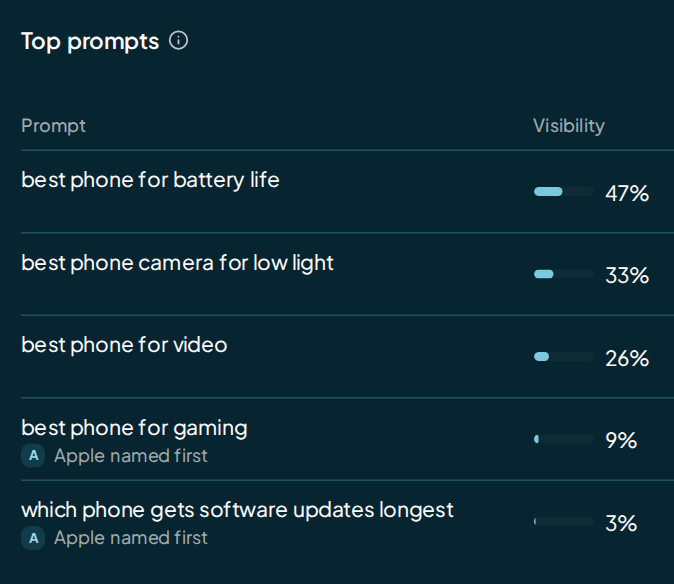
| Top prompts | Your Strongest or Weakest prompts | Prompts |
| To-do | Sites to get listed on, then site and content fixes | Improve |
| How AI sees you | A one-line description of your business, the tone split and wrong claims to correct | Perception |
| Your website | Your site score out of 100 and how many runs pass | My website |
| Top sources | The 5 domains the latest run's answers cited most | Sources, on Insights |
The summary card under the tiles is written by fixed rules from your stored numbers. No AI writes it.
Compare with one rival
Click a rival's row in Top rivals. A dialog sets you against that rival on every prompt that named them in the latest run.
A bar splits those prompts three ways: You ahead, Rival ahead and Rival alone. You ahead means the answer named you before the rival. Click a prompt to read its stored answer.
Under the table, a shortcut opens the same dialog for the rival closest to you.
Top prompts
Switch between Strongest and Weakest to see up to 7 prompts each.
- Visibility is the share of answers naming you across your last 12 runs.
- AI models carries one mark per AI model. A mark is in full colour when that model named you in the latest run, and faded when it didn't. Hover the marks to read the names.
- Change is how many more, or fewer, AI models named you than in the run before.
When a rival was named first, its name sits under the prompt. Click a prompt to open its own page on Prompts.
The Improve card
It shows the top 5 rows of Improve, with the same names and marks. Changes remake didn't find come first, then those with your AI, then what's still to do. Click a row to open it on Improve.
The foot counts Live, With your AI and To do, the same numbers Improve shows. View all in Improve opens the full list.
FAQ
The page says "No runs yet". What now?
Numbers arrive after the brand's first run. Press Continue setup to finish setting the brand up and start it. If the schedule is already on, the first numbers land after its first run.
Why is there no change next to a number?
A change needs two runs. After your second run, each number shows how it moved since the run before.
Why does a change here differ from Insights?
Overview compares the latest run with the run before. Insights compares it with the latest run in the period you compare with. See Insights.
Does opening Overview use credit?
No. Overview reads your stored runs and never asks an AI model.