Set up and tune
Schedules
Set a brand's runs to repeat on their own: which AI models, how often, and an optional monthly cap. The schedule lives on the brand's Budget & Spending page.
Before you start
- A brand with at least 10 active prompts. See Create prompts.
- A country picked for the brand. See Brand settings.
- Credit in your wallet for at least one run.
- The account owner's sign-in. A Viewer can see the schedule but not change it.
If you set up the brand through setup, it already has a schedule. Its first run started when you pressed Start schedule there.
Set up a schedule
- Open the brand, then Budget & Spending in the sidebar, under Setup.
- Click Set up Budget & Spending. A dialog opens with 4 steps: Prompts, Models, Frequency and Confirm.
- Prompts: check the count of active prompts. To cap this brand's spend, type a dollar amount in Monthly cap, or leave it blank. Click Next.
- Models: pick Standard, Pro or Hyper. Each card is a model set, with its AI models and the price of one run. Click Next.
- Frequency: pick how often to run. Read Each run and Expected per month, then click Next.
- Confirm: read the summary and Your credit. Click Start schedule.
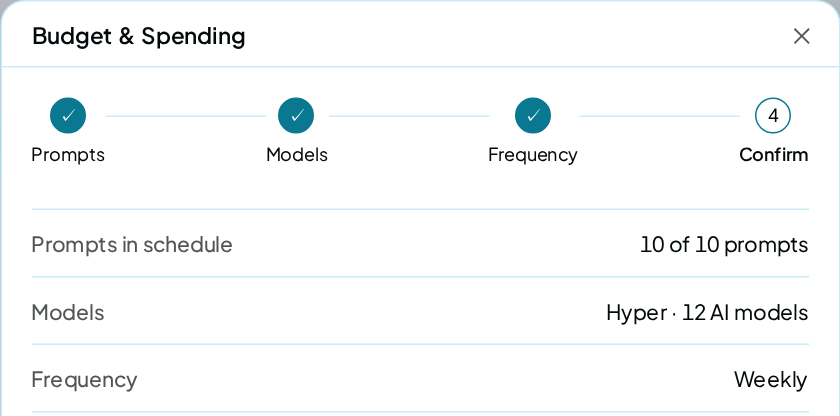
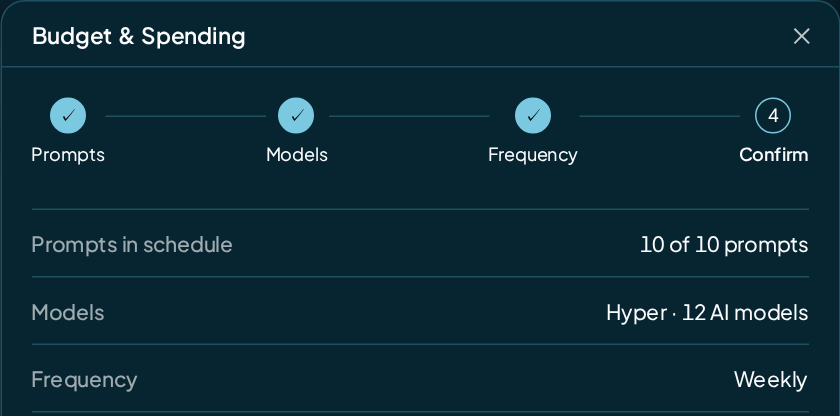
Start schedule saves your schedule. Nothing starts at once: your first run comes one interval later.
A weekly schedule you start today first runs a week from now. To run sooner, use Run now.
Next stays off on the Prompts step until you have 10 active prompts. Start schedule stays off if your wallet can't cover one run. That test leaves out the first run's fix suggestions ($0.25), so leave a little extra for the first run.
Pick a frequency
| Option | Runs about |
|---|---|
| 1 hour | 730 times a month |
| 6 hours | 122 times a month |
| 12 hours | 61 times a month |
| 1 day | 30 times a month |
| 3 days | 10 times a month |
| 1 week | 4.35 times a month |
| 2 weeks | Twice a month |
A new schedule starts at 1 week.
What the numbers mean
| Row | What it shows |
|---|---|
| Questions | Your active prompts on every AI model in the set |
| Fixed part of each run | The website visit, the site checks and the answer scoring |
| Each run | The two together, plus any unblocking charge |
| Expected per month | Each run × the runs in a month at your frequency, before any cap |
For example, 25 prompts on Standard, weekly, show $1.13 in Each run and about $4.91 a month. Before the first run, find $1.38 in First run and $1.13 in Each run after. The month then reads about $5.16, with the fix suggestions counted once.
Rates are on the price card. Runs explains the sum.
A brand's first run also writes its fix suggestions. Until a run has written them, the page adds a Fix suggestions · once line. Find First run and Each run after there instead of Each run.
Expected per month then counts the fix suggestions once. In the setup dialog, the First run line says it includes them, once.
Change a schedule
- Click Edit Budget & Spending at the top of the page.
- Change the model set, the frequency or the cap.
- Click Start schedule on the Confirm step.
Your change counts from the next run. Saving sets your next run one interval from now.
To change which prompts are asked, pause or resume them on the Prompts page. Your schedule asks every active prompt.
Pause, resume or delete
- Pause: click Pause on the Schedule state card. Nothing runs and you pay nothing.
- Resume: click Resume. The dialog shows the price first. Resuming starts a run within about a minute, then carries on at your frequency.
- Delete: under Danger zone, click Delete schedule and confirm. Every scheduled run stops. Your prompts and your history stay.
When a schedule pauses itself
| The page says | Why | What happens next |
|---|---|---|
| No credit, runs pause until a top-up | Your wallet can't cover the next run | It tries again each day, and runs once your top-up covers it |
| Monthly budget reached, runs resume next month | The next run would pass your monthly cap | It waits until the 1st of next month |
| Nothing is being asked, add prompts to resume | No prompt is active | Nothing is asked, and you pay nothing, until you resume prompts |
| No country picked, runs wait until you pick one | The brand has no country yet | Nothing is asked until you pick one in Brand settings |
A schedule paused for credit can take up to a day after your top-up to run again. To run at once, use Run now.
Check it worked
At the top of the page, your schedule reads Active, with your frequency beside it. Below, find Each run and Expected per month.
On the brand's Overview, the header shows the date of the next run.
FAQ
When does my first scheduled run happen?
One interval after you press Start schedule: a day later on a daily schedule, a week later on a weekly one. Press Run now to run straight away.
Can a schedule track fewer than 10 prompts?
Setup asks for 10 to start. If you later pause prompts below 10, the schedule keeps running, and the Prompts page warns that the numbers get thin.
Does the monthly cap stop a run halfway?
No. The cap is compared before each run starts, and it counts everything the brand's runs spent this month, Run now included. A scheduled run that would pass it waits for next month, and Run now is refused.
Can I schedule only some topics?
The schedule asks every active prompt. To leave a topic out, switch it off on Topics & Locations; that pauses its prompts.