Account
Wallet and credit
Your wallet holds the prepaid credit that pays for runs, AI writing and checks that a change is live. AI writing covers prompt writes, a topic's Draft with AI brief, rival suggestions through your AI and a fix suggestions Refresh.
One wallet covers every brand on your account. Every feature is on every account, and you pay only for what you use.
Open it
Open Wallet in the account menu, or click your name at the bottom left and choose Wallet. That menu row also shows your balance.
The Wallet is the one place for money. It has four tabs: Overview, Limits, Spending and History.
On Overview, the top card shows your balance under Total available. Rates → opens the price of every AI model and every step. This month shows what you've spent so far, with Your AI's limit, your Managers' limits and your brand caps beside it.
Add credit
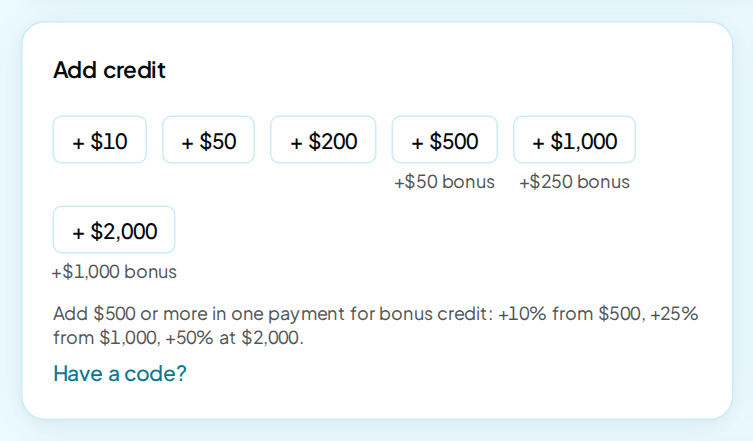
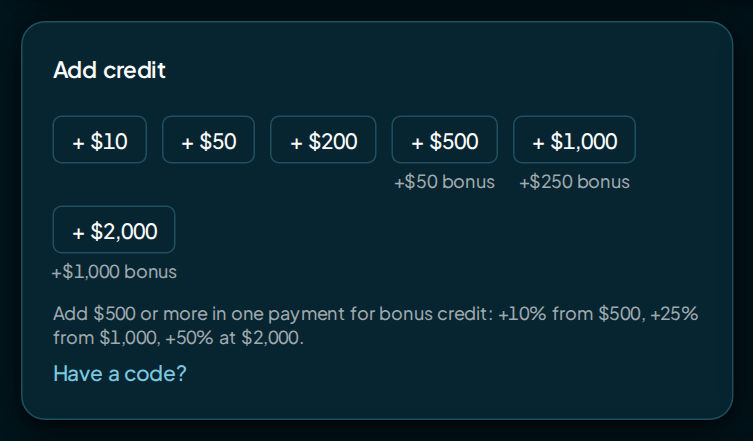
The Add credit card has one button per amount: $10, $50, $200, $500, $1,000 and $2,000. $10 is the smallest top-up.
- Click an amount.
- Pay on the secure checkout page that opens.
- Come back to the Wallet. The credit lands once the checkout completes.
Credit buys exactly its face value. A $50 top-up adds $50 to your balance. Prices are in US dollars.
One payment of $500 or more also earns bonus credit. Prices and limits has the amounts and when it arrives.
If nothing opens, check that your browser didn't block a pop-up.
When credit expires
When each kind of credit expires
| Credit | Expires |
|---|---|
| A top-up, or an auto top-up | 12 months after you buy it |
| Credit from a code | Never |
| A refund | Never |
| Bonus credit | With the payment that earned it |
Click the ⓘ beside Total available to see each amount you hold, where it came from, and its expiry date or "no expiry". Credit that expires soonest is spent first. Credit that expires shows as an Expired line in History.
A bonus on its way shows greyed in the same list, with the day it arrives and its expiry date. It joins your balance on that day.
Auto top-up
Auto top-up buys credit with a saved card when your balance drops below a line you set. It's off until you turn it on.
- On the Auto top-up card, click Manage.
- Click Add card and save a card on the secure page that opens.
- Turn on Top up automatically.
- Set When the balance drops below and Buy this much.
- Click Save.
The auto top-up rules
| Rule | Limit |
|---|---|
| Buy this much | From $10 to $500 |
| When the balance drops below | Up to $200, and less than the amount you buy |
| Top-ups a day | 5 at most |
| Time between top-ups | 5 minutes at least |
| Failed charges | 3 in a row turn auto top-up off |
The Auto top-up window says "We never see or store your card".
You can save up to three cards. The newest card you save is the Primary, and the others are Backup cards. When a top-up is declined, the next try uses the next card in the list.
Each card has its own Remove. If you remove the primary, the newest card you still have becomes the primary. Removing your last card turns auto top-up off.
Redeem a code
A code adds credit to your wallet. Each code works once, and its credit never expires.
- Click Have a code? (or Redeem a code) on the Add credit card.
- Type the code, such as
AS-XXXXXXXX-XXXXXX. Capitals don't matter. - Click Redeem.
The dialog says how much was added and your new balance.
Limits
The Limits tab lists every limit on your spending, with this month's spend beside each. The one nearest its limit comes first.
- Your AI: what your AI and connected apps can spend each month. Click Change, type an amount (or leave it blank for no limit), and click Save.
- Each Manager: what they can spend from your wallet each month. Change works the same way. See Team.
- Each brand's monthly cap: part of its schedule. Edit cap or Set cap opens Budget & Spending with the cap ready to change.
Hover the ⓘ beside a name to see what its limit counts. Every limit resets on the 1st (UTC).
Spending
The Spending tab shows what you spent over a period. Pick This month, Last month, Last 30 days, Last 90 days or This year.
- Spent, Charges and Refunded for the period.
- Charges by day, before refunds, in groups: runs, scheduled runs, and writing and checks. Calls charged before 15 Nov 2026 show as their own group.
- By category: charges, cost and share for each kind of cost. Click the arrow beside a category to see each AI model or step inside it.
- By brand (or By website) and By person: the same total split two more ways. Spend that belongs to no one brand shows as No brand.
Export CSV downloads every wallet line in the period, with a total that adds up to the screen.
The categories
| Category | What it covers |
|---|---|
| Setup | Setting up a brand, its first run included |
| Scheduled runs | AI model answers on scheduled runs |
| Runs | AI model answers on runs you started |
| Prompt writing | Prompts written with AI |
| Analysis and reports | Scoring answers, reading websites, reports and fix suggestions |
| Website checks | Crawls, website checks and outside pages read |
| Fix verification | Re-checks that a fix is live |
| API calls (before 15 Nov) | Calls from your AI and connected apps, charged before 15 Nov 2026. Calls are free now |
History
The History tab lists your wallet lines by day, newest first. One run's charges on one day show as one line, with its category, brand, who started it, the number of charges and the total. Click the arrow to see each AI model or step inside it.
Top-ups, codes, bonuses and expired credit each have their own line.
Filter by type (Top-up, Charge, Refund, Credit, Expired or reversed), category, brand or person. The period menu works like the one on Spending.
The Wallet doesn't hold invoices or receipts. For a question about a payment, write to gabi@tryremake.com.
Low and empty balance
Before your first top-up, the top bar shows Add credit to start runs. When credit runs low, it shows Low credit with your balance. When it runs out, it reads Out of credit · runs paused.
When your wallet can't cover a scheduled run, we email you once. The next email comes only after a top-up.
With an empty or short wallet:
- Run now, AI writing and re-checks stay off until you top up.
- Scheduled runs pause and try again each day. They start again once your balance covers them.
- A run that runs out midway stops asking. You keep the answers that came back.
- Everything you already have stays open: your results, reports, exports and Improve.
Refunds
- A charge that fails on our side is refunded at once, as a Refunded row.
- Work you stop yourself, such as deleting a brand mid-run, stays charged for what ran.
- A fix re-check is charged when the site is down or slow, doesn't load or is too large to read in full.
Who can pay
Only the account owner can top up, redeem codes, set auto top-up and change limits. A Manager spends from your wallet up to their own monthly limit, and sees the balance and their own limit only; see Team. A Viewer seat can't spend credit.
FAQ
Do some features cost more to use?
No. Every feature is on every account, and you pay only for what you use. That means runs, AI writing (prompts, topic briefs, rival suggestions, fix suggestions), checks that a change is live and pitches.
If your site blocks automatic reading, each visit adds an unblocking charge, listed on Prices and limits. Calls from the API or your own AI assistant are free. Every brand draws from the same wallet.
How do I cancel?
There is nothing to cancel. remake never bills you on a timer; you spend only the credit you add. To stop spending, Pause each brand's schedule on Budget & Spending and turn off auto top-up.
What happens to my credit if I delete my account?
It goes with the account. Deleting your account removes your remaining credit, and it can't be refunded.
While a top-up payment is still going through, the account isn't deleted. Try again once the payment has gone through.
I paid, but my balance hasn't changed. Why?
Credit lands once the checkout completes. Reload the Wallet after paying. If it still hasn't arrived, write to gabi@tryremake.com.
Why is one run many rows?
Each answer is charged as it comes back. History folds one run's charges into one line, and Spending shows the totals by category, brand and person.